Granting permissions for KoboldCPP to run on your own computer.
If KoboldCPP needs permissions to start on your operating system, see below for a solution.
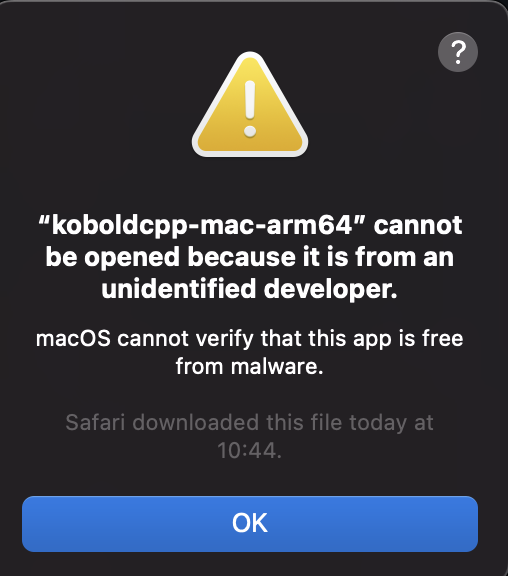
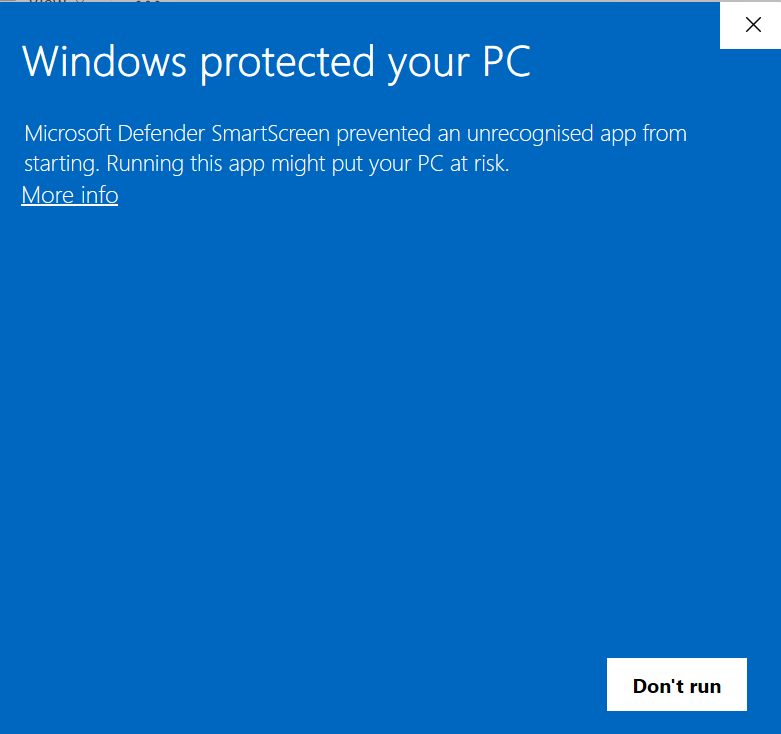
Windows and Mac users, if your Operating System doesn't trust the file. dispaying a message such as the following.
You should first satisfy yourself that the file is indeed free from malware before continuing. Deciding to run the executable on your computer is your own responsibility and we in no way accept any liability for any consequences. See here for a way of checking the file for malware.
See further down for the specific steps for Mac or for Windows.
Linux users who see something similar will need to refer to the docs for their specific distro for how to grant permission.
Mac and Linux users, if your computer acts as though KoboldCPP is a document rather than an application, for instance opening in a text editor rather than launching, or showing in the file viewer as a document.
Open a terminal in the directory where you downloaded KoboldCPP. For most users if the file is in your normal Downloads folder, you can do this by opening a terminal and typing cd Downloads followed by enter.

Next type chmod +x followed by the filename of your KoboldCPP version and then enter. You can now close the terminal and your OS should reconise the file as an application.
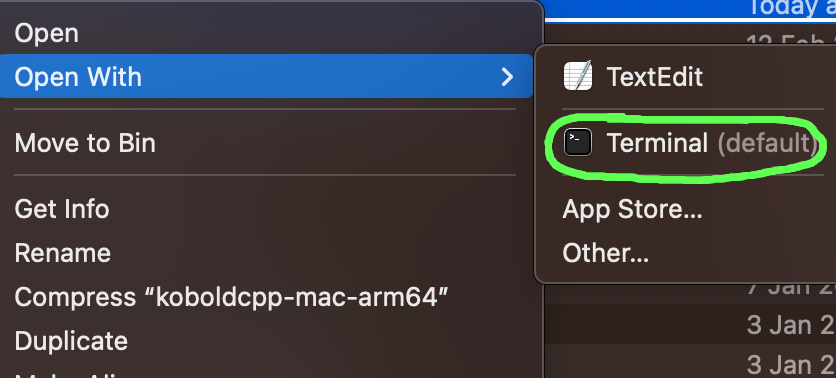
Extra note for Mac users, MacOS may still open with the text editor by default if it's been opened before, you can right click on the file icon and select to open with 'Terminal'.
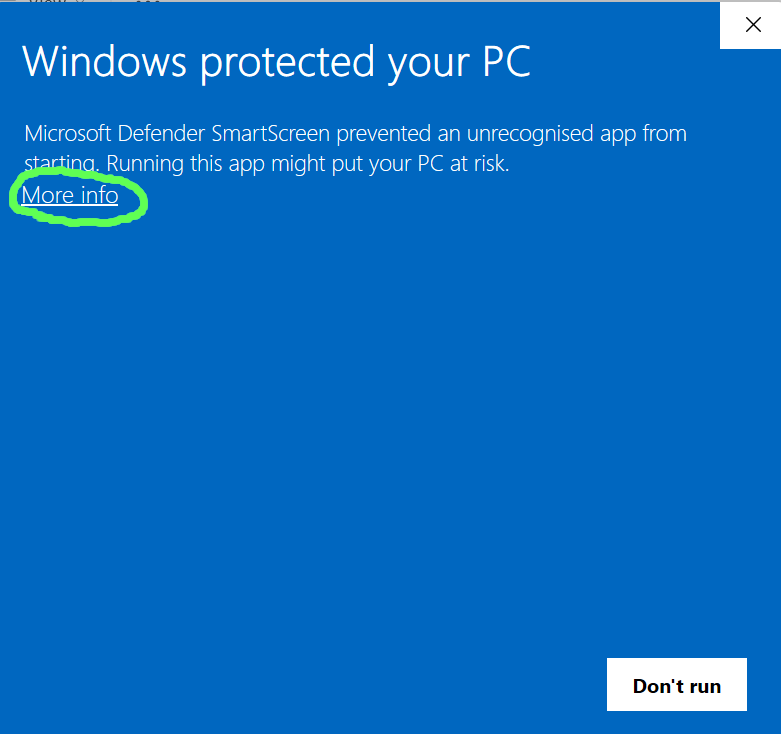
Windows users, if your Operating System doesn't trust the file. dispaying a message such as the following.
You should first satisfy yourself that the file is indeed free from malware before continuing. Deciding to run the executable on your computer is your own responsibility and we in no way accept any liability for any consequences. See here for a way of checking the file for malware.
When you are sure you want to run the file, click "More Info".
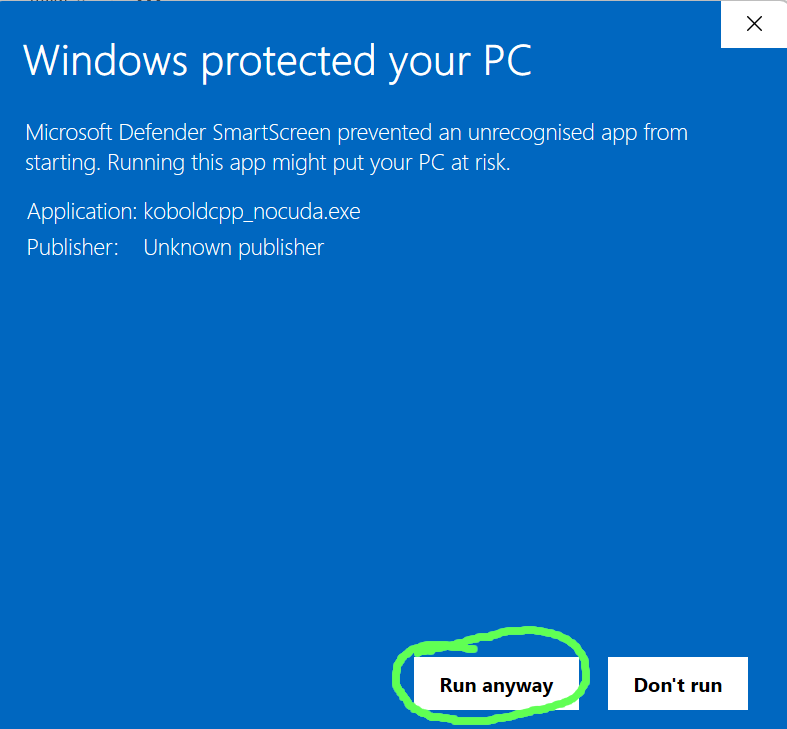
Then click "Run anyway", at which point the application should start.
Mac users, if your Operating System doesn't trust the file. dispaying a message such as the following.
You should first satisfy yourself that the file is indeed free from malware before continuing. Deciding to run the executable on your computer is your own responsibility and we in no way accept any liability for any consequences. See here for a way of checking the file for malware.
When you are sure you want to run the file, open "System Settings" from the Apple icon menu in the top left of your desktop.
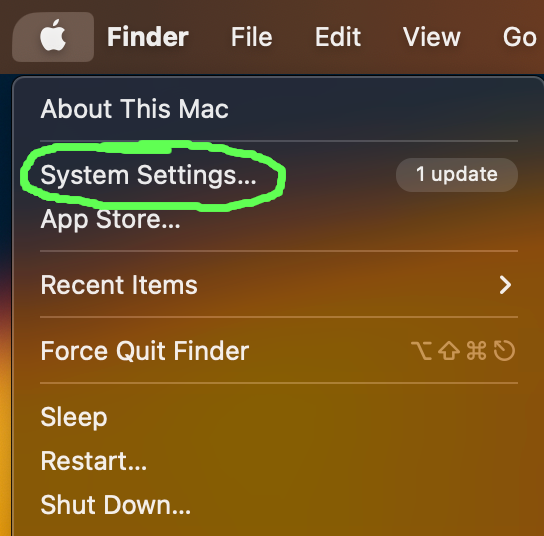
Then navigate to the "Security & Privacy" tab from the options on the left hand side.
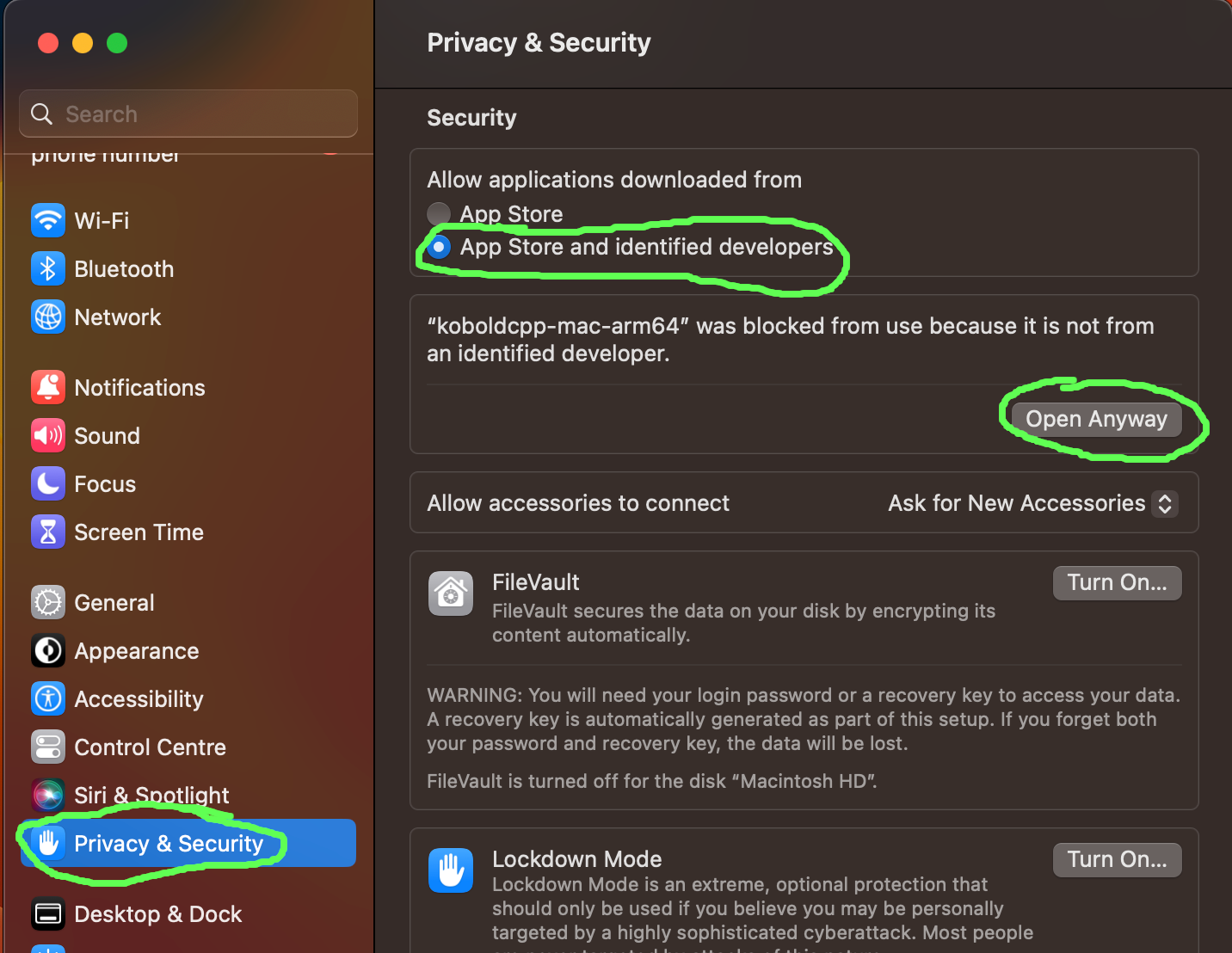
Under where it says "Allow applications downloaded from", ensure that "App Store and identified developers" is selected.
Below that you should see a message saying that the file was blocked from running. Click the "Open Anyway" button below this message.
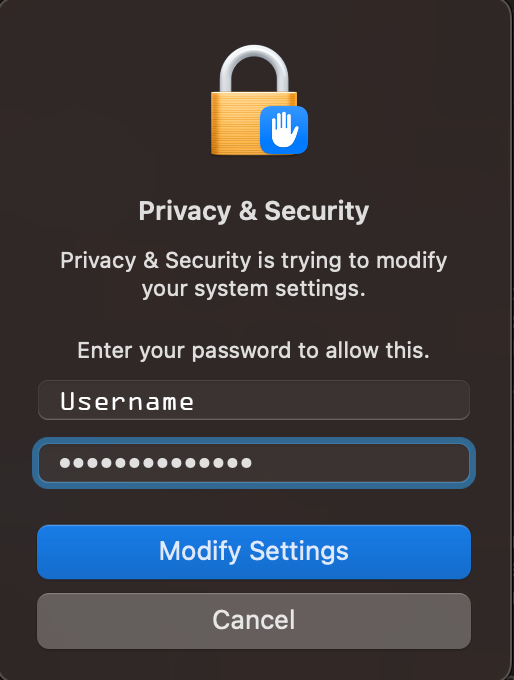
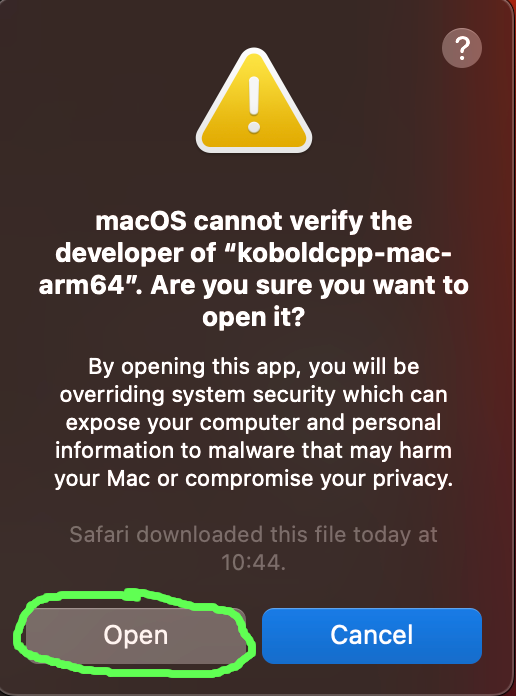
You will now likely be asked for your password to update the settings and then asked a final time to confirm that you want to run the application. After clicking "Open" the application should start.